
Advanced settings
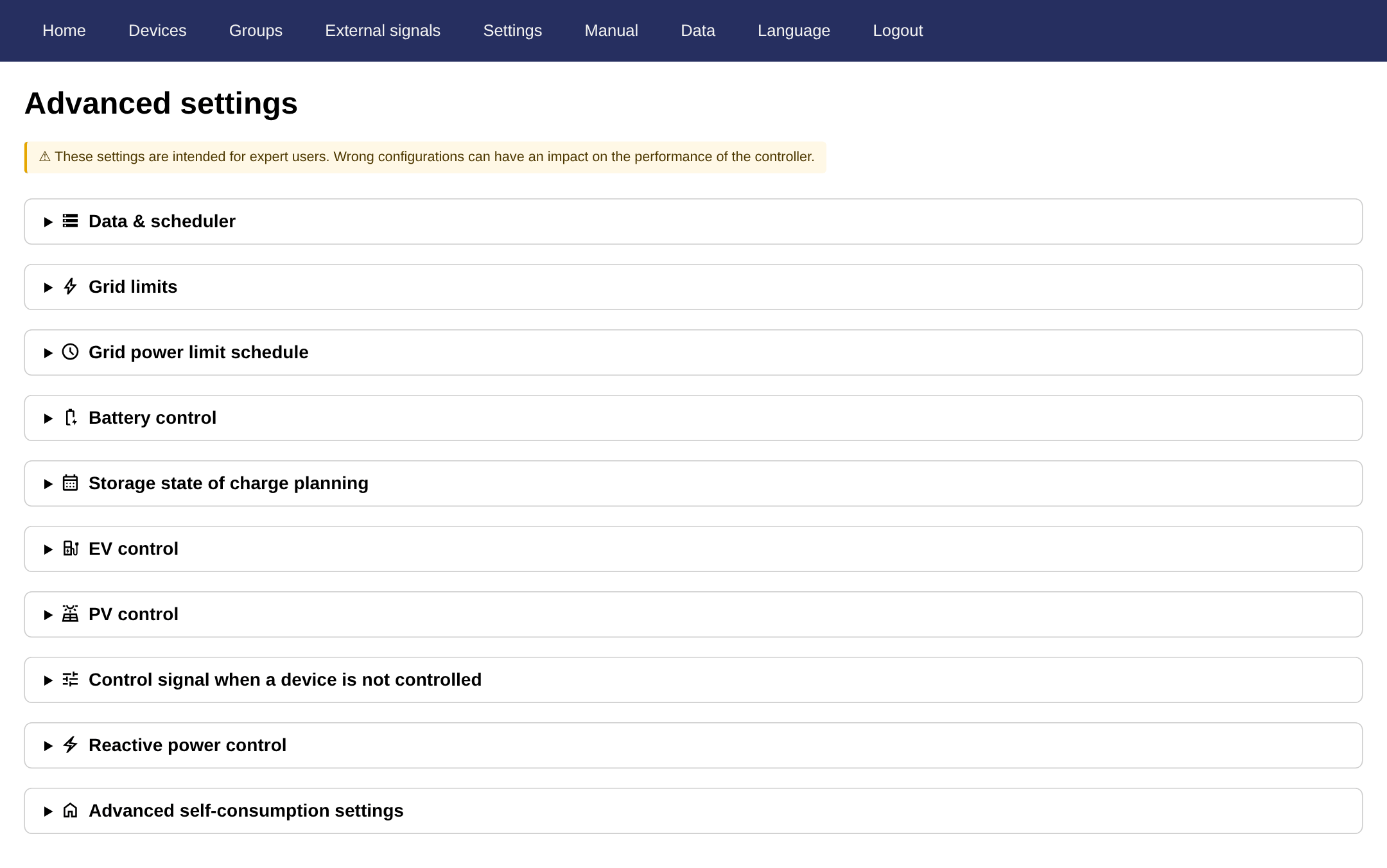
The advanced settings are reached from the 'Settings' tab of the commissioning interface: scroll down to the section "Advanced settings" and click "Go to advanced settings".
Warning
These settings are intended for expert users. Wrong configurations can have an impact on the performance of the SmartgridOne Controller. Unless a chapter of this manual or your distributor tells you to change one of them, leave them at their default value.
How the page works
- The settings are grouped in collapsible sections. Click the title of a section to open it.
- Every section is a table with the name of the setting, a help icon with the explanation of the setting, its current value and a field for the new value. Each section has its own "Save" button at the bottom: the changes of a section are only applied after you click that button.
- A warning is shown next to a setting that deviates from its standard value where that is risky. Such a warning is a hint to put the setting back to its default, unless you know why it was changed.
- Some settings are one-way: once they are switched off, they disappear from the page. See Retired settings.
Data & scheduler
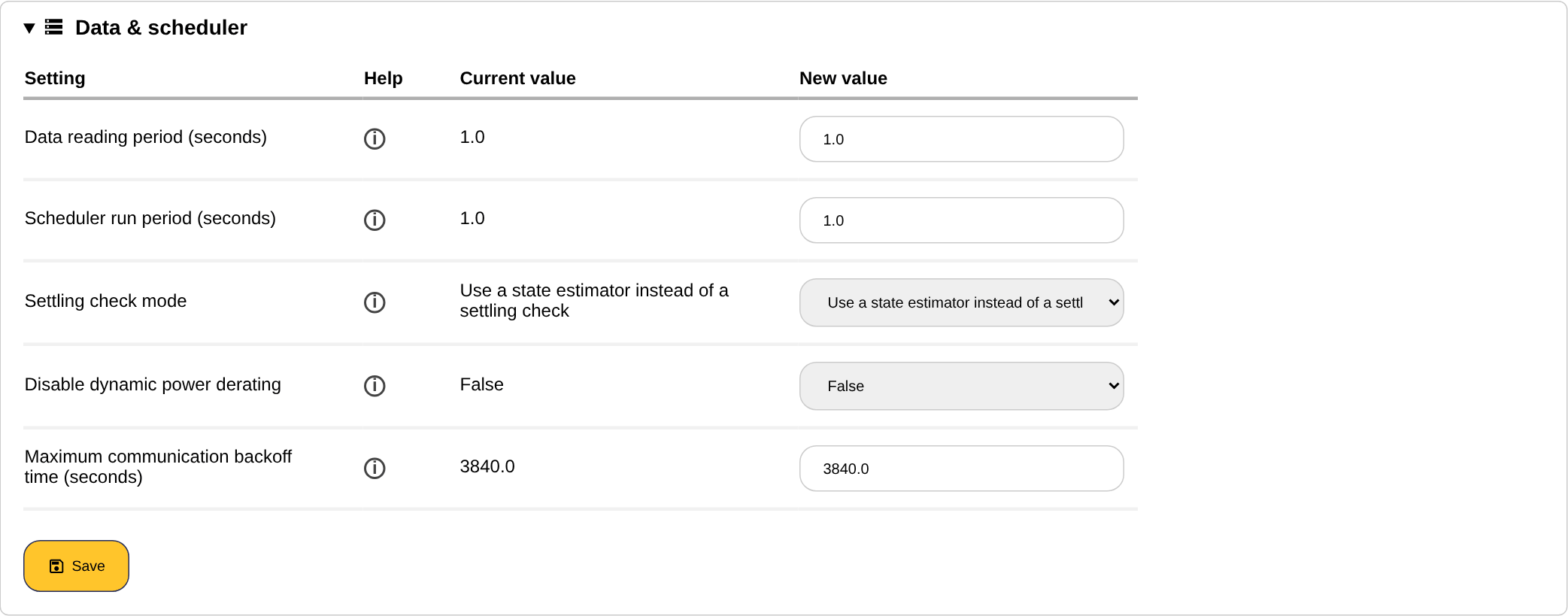
| Setting | Default | Explanation |
|---|---|---|
| Data reading period (seconds) | 1 (cloud SmartgridOne Controller: 300) | How often the devices are read out. Leave this at zero or one, so that the devices are read out as often as possible. If the value is lower than the time a full readout takes, the devices are simply read out continuously. |
| Maximum communication backoff time (seconds) | 3840 | When communication with a device repeatedly fails, the SmartgridOne Controller waits longer and longer between retries, up to this maximum. Retrying a failing device costs communication time (for example on a serial bus) and slows down the readout of the devices that do work. Lowering this value is only a last resort: rather fix the communication problem of the device. |
| Scheduler run period (seconds) | 1 (cloud SmartgridOne Controller: 10) | The minimum time between two consecutive executions of the control loop. See also Control response time. |
| Settling check mode | Always check for settling (cloud SmartgridOne Controller: Never check for settling) | Whether the control loop waits until all controlled devices have settled to their setpoint before calculating the next setpoint. "Always check for settling" gives the most stable control. "Only check for settling if oscillating setpoints are detected" is a balance between stability and speed. "Use a state estimator instead of a settling check" is the fast and stable option, which will become the default in the future: the control loop does not wait for the devices, but estimates the actual power of every device from its measurements, its setpoints and the changes it observes in the grid power, and calculates the next setpoints from those estimates. "Never check for settling" runs the control loop as fast as possible without any of this, but may cause instability: only use it where open loop control is acceptable, for example when the SmartgridOne Controller is used exclusively through an external API and exceeding the grid limits is not an issue. See also The settling check. |
| Maximum settling time (seconds) | 30 | How long the control loop waits at most for settling before it proceeds anyway. Lower values make the control react faster, but may cause instability. |
| Disable dynamic power derating | False | The dynamic derater detects devices that persistently deliver less power than their setpoint asks (for example because of a temperature or battery management limitation), and temporarily lowers the power planned for them so that other devices can compensate and the grid limits are still met. It periodically probes whether the device has recovered. Disable it only as a last resort, for example while diagnosing a device. |
Grid limits
| Setting | Default | Explanation |
|---|---|---|
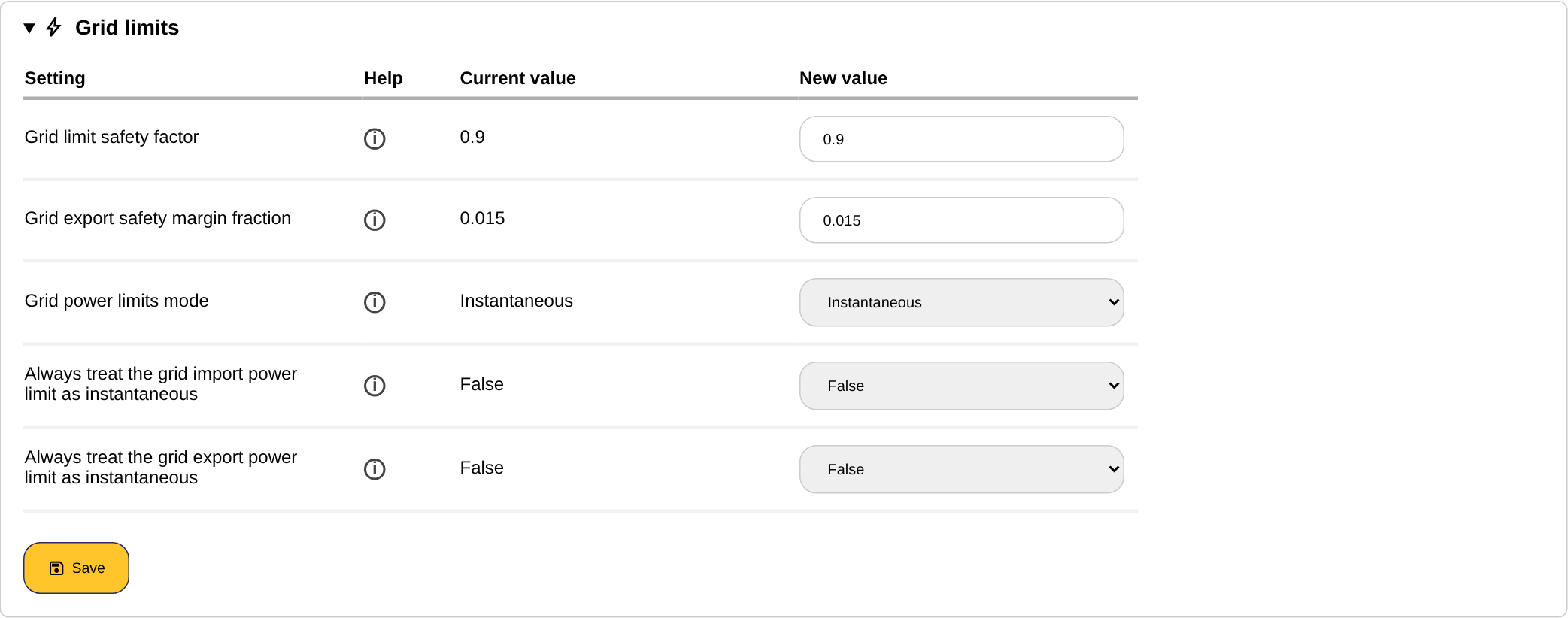
| Grid limit safety factor | 0.9 | Multiplier applied to the grid limits. With the default of 0.9, everything (including solar production) is controlled to stay within 90% of the configured grid limits, which leaves room to react to sudden power fluctuations. Set it to 1 only if you are sure there is no risk of tripping breakers. See also Troubleshooting: control issues. |
| Grid export safety margin fraction | 0.015 | A minimum for the export safety margin, as a fraction of the larger of the two grid limits (after applying the safety factor). It is used when the absolute "Allowed grid export power safety margin" of the grid settings is lower. It is not applied on a cloud SmartgridOne Controller. Do not change this unless you absolutely know what you are doing. |
| Grid power limits mode | Instantaneous | How the grid limits are interpreted: as instantaneous limits or as fifteen-minute averages. With "Fifteen-minute average", the SmartgridOne Controller limits the average grid power of the current quarter hour to the configured limits, which means that the instantaneous power can be much higher, especially if it was low during the first part of the quarter. See Grid limits: grid power limits mode. |
| Always treat the grid import power limit as instantaneous | False | Keeps the import limit instantaneous, regardless of the selected grid power limits mode. |
| Always treat the grid export power limit as instantaneous | False | Keeps the export limit instantaneous, regardless of the selected grid power limits mode. |
Below this section you find the Grid power limit schedule, see below.
Battery control
| Setting | Default | Explanation |
|---|---|---|
| Allow putting batteries in standby at low power setpoints | False | Lets the SmartgridOne Controller put a battery in standby when its setpoint is very small. Using an inverter at very low power is inefficient, so this generally saves costs. Do not enable it if it is important that the grid power is always controlled to exactly zero, even when the grid power is very low. |
| Storage cost optimization variability buffer size (%) | 10 | How big the self-consumption variability buffer is in cost optimization. This buffer counteracts the effect of weather and consumption variability within a single hour, to prevent fluctuations between import and export. See also Battery cost optimization. |
| Enable phase overcurrent compensation with single phase batteries on three phase grids | False | Also uses single phase batteries to compensate an overcurrent on a three phase grid. Caution: the SmartgridOne Controller looks at the heaviest loaded phase for protection, so the battery could be triggered to discharge for an overcurrent that is not on its own phase. This is not harmful, but may be undesirable. |
| Enable weekly battery maintenance charge | False | Fully charges all batteries once per week, on the given day and hour, to balance the battery cells. See Battery maintenance charge. |
| Weekday of battery maintenance charge | Monday | The day of the maintenance charge. |
| Final hour of battery maintenance charge | 04:00 | The hour at which the maintenance charge ends. The battery is charged some hours before this and then holds its charge. |
Below this section you find the Storage state of charge planning and, on Swiss sites, the Capacity tariff schedule, see below.
EV control
| Setting | Default | Explanation |
|---|---|---|
| Enable grid support from local storage for EV Charging | False | Actively uses the local batteries to support the grid connection, so that more EV charging is allowed than the grid on its own could provide. This forces the batteries to peak shaving, regardless of their working mode. This setting is not compatible with external signals: if there are external signals, it is ignored. |
| Maximum battery discharge margin for EV ramp up (kW) | Unlimited | With grid support enabled, the battery is pre-emptively discharged to keep room between the actual grid power and the grid limits, so that charging EVs can keep ramping up their current. This setting caps how much battery discharge power may be reserved as ramp-up room. Set a value if the battery discharges more than desired while EVs are ramping up. |
| EV suspension signal debounce time (seconds) | 180 | How long the SmartgridOne Controller must persistently want to suspend an EV before the EV is actually suspended. Lowering this makes the EV stop faster when the conditions (for example self-consumption) no longer favour charging, but setting it too low can make the EV switch on and off frequently, which may harm the charger and the EV battery management system. |
| EV resume signal debounce time (seconds) | 120 | How long the SmartgridOne Controller must persistently want to resume an EV before charging is actually resumed. The same warning applies. |
PV control
| Setting | Default | Explanation |
|---|---|---|
| Uncurtailment fraction | 0.015 | To find out how much additional PV production can be allowed, a little import or export from the grid must be allowed, so that a curtailed inverter can safely ramp up and the SmartgridOne Controller can check whether more production is possible. This fraction of the total PV inverter power (or the total battery inverter power, whichever is the largest) is used for that small offset. 1.5% is the recommended value; lower values may cause the inverter not to switch on. |
| Curtail detector: on/off | True | Automatically detects and reports solar curtailment (the "curtailment" shown in the app and portal). |
| Curtail detector: detection tolerance (%) | 10 | If the current PV power is within this tolerance of the setpoint, the production is considered curtailed. |
| Curtail detector: measurement aggregation in seconds | 300 | The interval over which the power measurements are aggregated for the curtailment detector. |
| Curtail detector: ramp-up time (seconds) | 30 | How long an inverter is considered to be ramping up after a curtailment event. |
Control signal when a device is not controlled
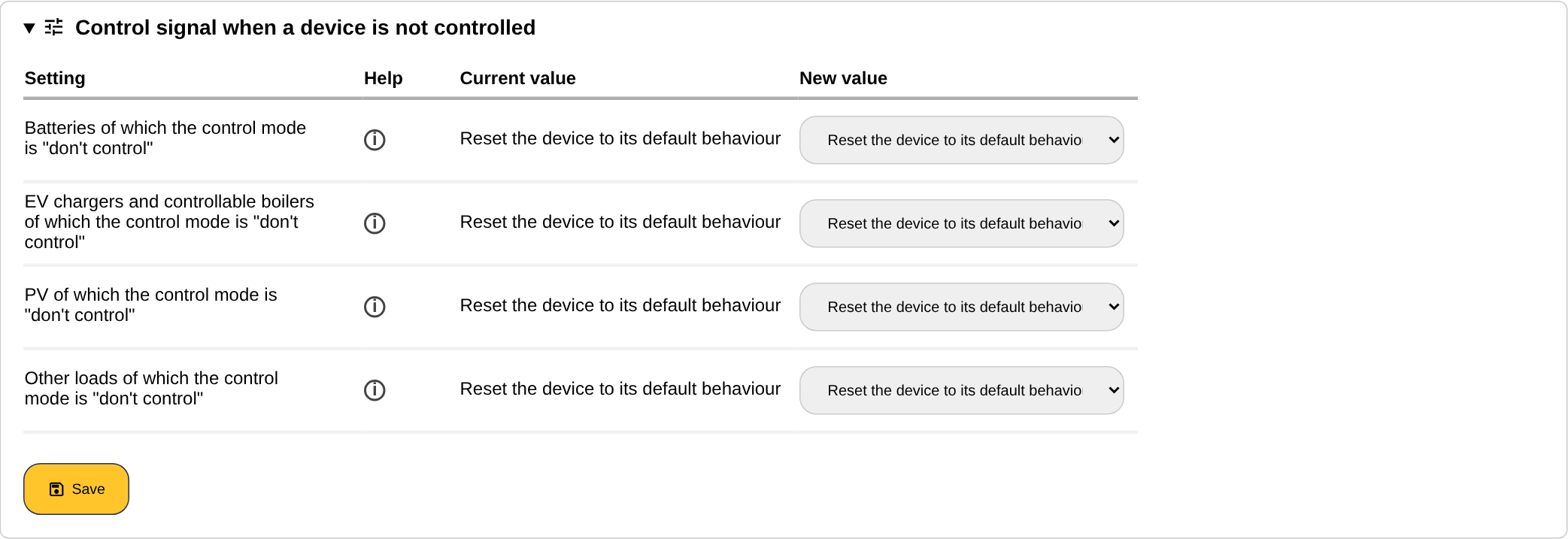
When the working mode of a device type is set to "Don't control" (or a device is excluded from control by the Monitoring only mode), the SmartgridOne Controller by default still sends a few commands to the device, so that it works again as it would without the SmartgridOne Controller. Per device category you can choose between "Reset the device to its default behaviour" (the default) and "Never send a reset command":
| Device category | Default reset behaviour | When "Never send a reset command" is selected |
|---|---|---|
| Batteries of which the control mode is "don't control" | Nothing is imposed on the battery anymore; it runs on its own settings. | The battery keeps doing whatever the SmartgridOne Controller last commanded, until it is controlled again. |
| EV chargers and controllable boilers of which the control mode is "don't control" | Charging at full power is allowed again. | The device keeps the last charge current that the SmartgridOne Controller sent to it. |
| PV of which the control mode is "don't control" | Producing at full power is allowed again. | The inverter keeps the last production limit that the SmartgridOne Controller sent to it. |
| Other loads of which the control mode is "don't control" | The heat pump, boiler or on/off load is put back in its own control mode. | The load stays in the last mode that the SmartgridOne Controller sent to it. |
Caution
Only select "Never send a reset command" for installations where the devices may never be written to as long as they are not controlled. With that option, a device that was curtailed or limited at the moment its control was switched off stays curtailed or limited.
Reactive power control
| Setting | Default | Explanation |
|---|---|---|
| Enable reactive power control | False | Enables reactive power control on the site level. The settings below only appear when it is enabled. |
| Allowed grid import reactive power (kVAr) | 100 | The maximum reactive power that may be imported from the grid. |
| Allowed grid export reactive power (kVAr) | 100 | The maximum reactive power that may be exported to the grid. |
| Start generating reactive power above (kVAr) | 0 | Devices that can control their reactive power limit the reactive import power of the site to this value. |
| Stop generating reactive power below (kVAr) | 0 | Devices stop generating reactive power when the reactive power of the site drops below this value. |
| Stop consuming reactive power above (kVAr) | 0 | Devices stop consuming reactive power when the reactive power of the site rises above this value. |
| Start consuming reactive power below (kVAr) | 0 | Devices limit the reactive export power of the site to this value. |
See Reactive power control for the full explanation.
Grid power limit schedule
Here you can specify rules for when the grid import and export power limits should be different from the defaults of the main settings page. Every rule has a day of week (a single day, Monday - Friday, Saturday - Sunday or Monday - Sunday), a month (all year round, a single month or a quarter), a start time, an end time, an export limit and an import limit in kW. Rules may not overlap. See also Grid limits.
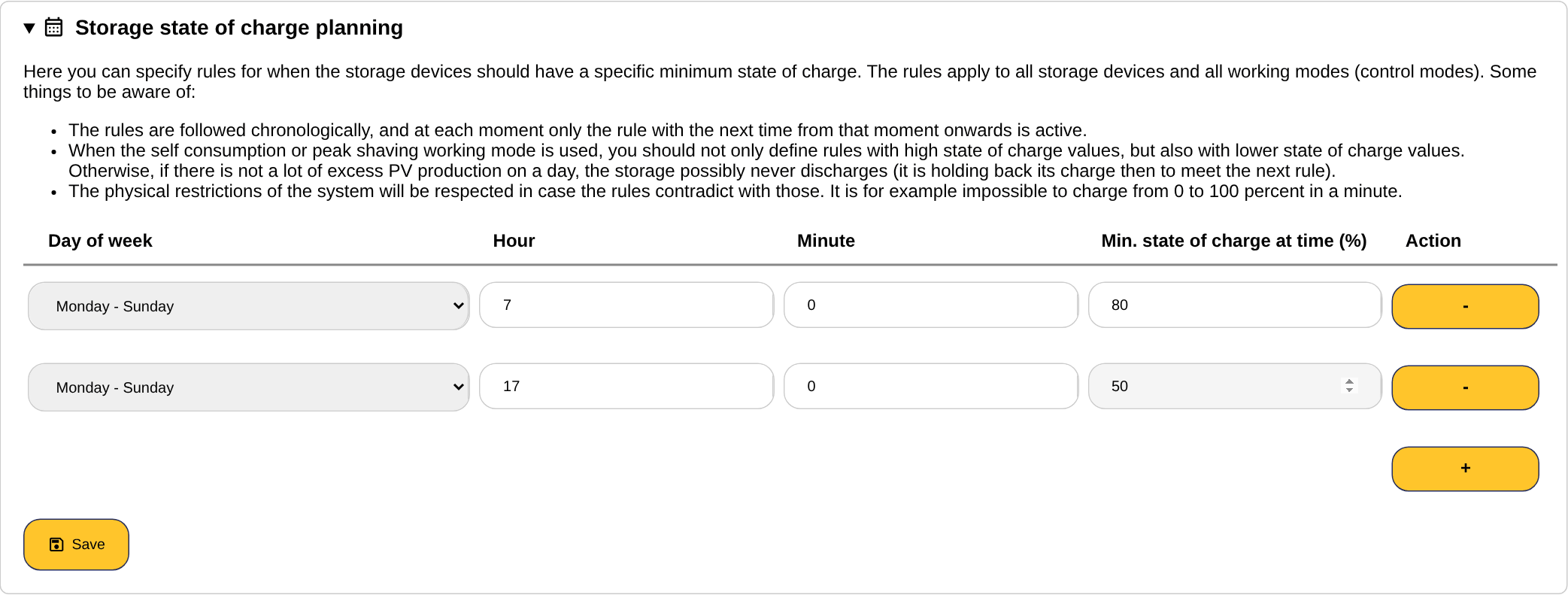
Storage state of charge planning
Here you can specify rules for when the storage devices should have a certain minimum state of charge. Every rule has a day of week, an hour, a minute and the minimum state of charge (%) at that time. The rules apply to all storage devices and all working modes. See Battery charging schedule for the things to keep in mind.
Note
The state of charge planning is disabled while the capacity tariff schedule is enabled. The two are incompatible.
Capacity tariff schedule (Switzerland)
Note
This section is only shown on sites whose address is in Switzerland.
With the capacity tariff schedule, the batteries switch to peak shaving during the periods in which a capacity tariff applies, so that the grid peaks are shaved during those periods. Outside those periods the batteries follow their normal working mode.
The section shows a checkbox "Enable capacity tariff schedule" and a summary of the current configuration: the critical reserve, whether the critical reserve is charged before each capacity tariff period, and the number of configured rules. When the schedule is disabled, the rules are kept but not applied. Enabling the schedule replaces the storage state of charge planning.
The configuration itself is done in the capacity tariff schedule wizard (button "Open capacity tariff wizard"):
- When is the capacity tariff active? Add one or more weekly windows, each with its days of week, start time and end time. Windows may not overlap.
- Peak shaving battery reserve: the critical reserve, the percentage of the total battery capacity that is reserved exclusively for peak shaving. This works like the critical reserve of the peak shaving plus mode.
- Minimum state of charge rule: whether the storage must be charged to the top of the critical reserve before each capacity tariff period starts, so that the reserve is full from the start of the period.
- Peak shaving thresholds: the four peak shaving thresholds (start discharging above, stop discharging below, stop charging above, start charging below) in kW, either the same all year round, one set per quarter or one set per month.
Finishing the wizard with "Save and enable capacity tariff schedule" enables the schedule and replaces any existing capacity tariff rules.
Advanced self-consumption settings
By default, the self-consumption strategy uses the main grid meter to determine the power that is imported from or exported to the grid. Here you can select another energy meter as the reference for self-consumption instead. The system will then be controlled to show zero on this meter. This is only possible when more than one energy meter is configured. See Self consumption on another meter than the grid meter.
Retired settings
The following settings are being phased out. They are only shown on sites that still have them switched on, so that those sites can switch them off. Once switched off, they disappear from the page and cannot be switched on again.
| Setting | Explanation |
|---|---|
| Disable scheduler | Nothing is controlled on the site anymore: the SmartgridOne Controller still reads out its devices and sends their data to the server, but no longer sends setpoints, and the grid limits and peak shaving are no longer enforced. Rather set the working mode of the device types to "Don't control", or use the Monitoring only mode for specific devices: the site protections then keep working for the devices that are still controlled. |
| Enable true three phase scheduler working mode (experimental) | Switches the control loop to a per-phase working mode, which requires that the phases of every device are mapped correctly to the phases of the main energy meter. The control system handles phase imbalance natively better than this experimental setting; it is kept working on the sites that already use it but gets no further development. See Phase imbalance correction. |
| Also transmit rarely used live data to server | Sends all one-second readings to the server database instead of only the power data. This increases the database load and may become subject to additional licensing. |
Bulk settings
On a cloud SmartgridOne Controller that manages several sites, the advanced site settings can be applied to a selection of sites at once from the bulk settings page. Only the settings that allow bulk editing are shown there.