Network settings
The network related settings are on the 'Settings' tab of the commissioning interface. For the network requirements of the SmartgridOne Controller (firewall, ports, VLAN), see Advanced network settings.
Network configuration
The section "Network configuration" configures the ethernet port(s) and, on models with a modem, the mobile network. What is shown depends on the model of the SmartgridOne Controller.
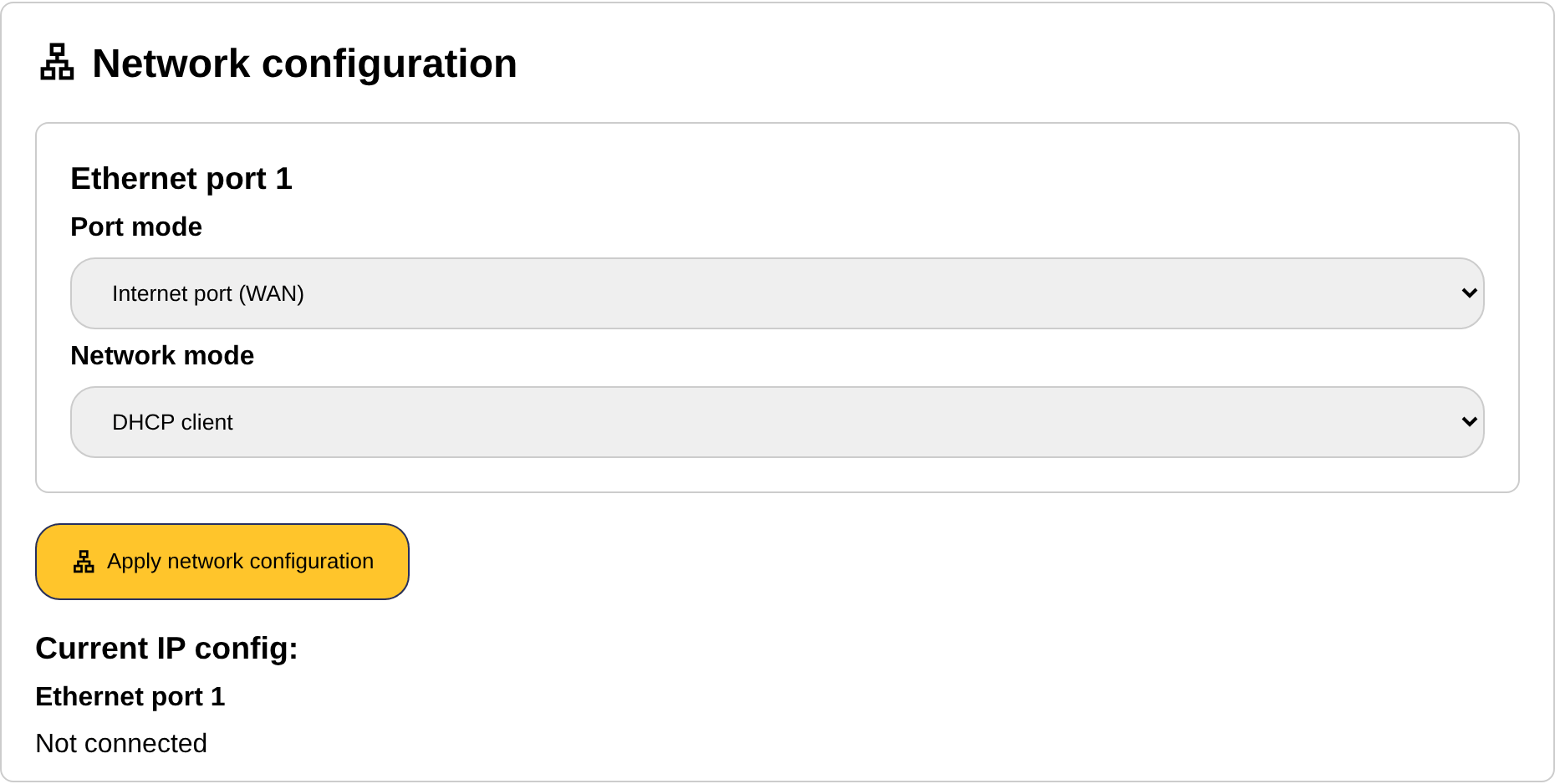
Ethernet port 1
| Setting | Explanation |
|---|---|
| Port mode | Internet port (WAN): the port connects the SmartgridOne Controller to the network with the internet router; this is the default. Separated network (LAN): only on models with a mobile network: the port serves a separate local network for the devices, while the internet comes in over the mobile network. The SmartgridOne Controller then acts as DHCP server on that network. |
| Network mode | DHCP client (default): the router assigns the IP address. Fixed IP: you enter the IP address, netmask, gateway and DNS servers yourself. |
| IP Address, Netmask, Gateway, DNS Server 1 and 2 | Only with a fixed IP. Enter the address of the SmartgridOne Controller, the netmask of the network, the address of the router and the DNS servers (for example 1.1.1.1 and 8.8.8.8). |
| DHCP server start and end IP address | Only in LAN mode: the range of addresses that the SmartgridOne Controller hands out to the devices on the separated network. |
Ethernet port 2
On models with two ethernet ports, the second port can be Bridged with ethernet port 1 (both ports are on the same network, so the devices can be connected to port 2 and share the network of port 1) or a Separated network (LAN) with its own IP configuration and DHCP server. The separated network is the usual choice for devices that must not be reachable from the rest of the network.
Mobile network
On models with a modem, enter the APN of the SIM card as provided by the mobile operator.
Current IP config
Below the form, the section "Current IP config" shows the IP address and netmask that each port actually has, or "Not connected". Click "Apply network configuration" to save the changes.
Warning
Write down the configuration you apply. If the SmartgridOne Controller becomes unreachable after a change, see Troubleshooting: access to the commissioning interface. A factory reset puts the network configuration back to DHCP.
Tip
Only configure a fixed IP address if you have no other choice. It is recommended to keep DHCP and to let your router always assign the same IP address to the SmartgridOne Controller. See Fixed IP addresses.
Network usage and data saver
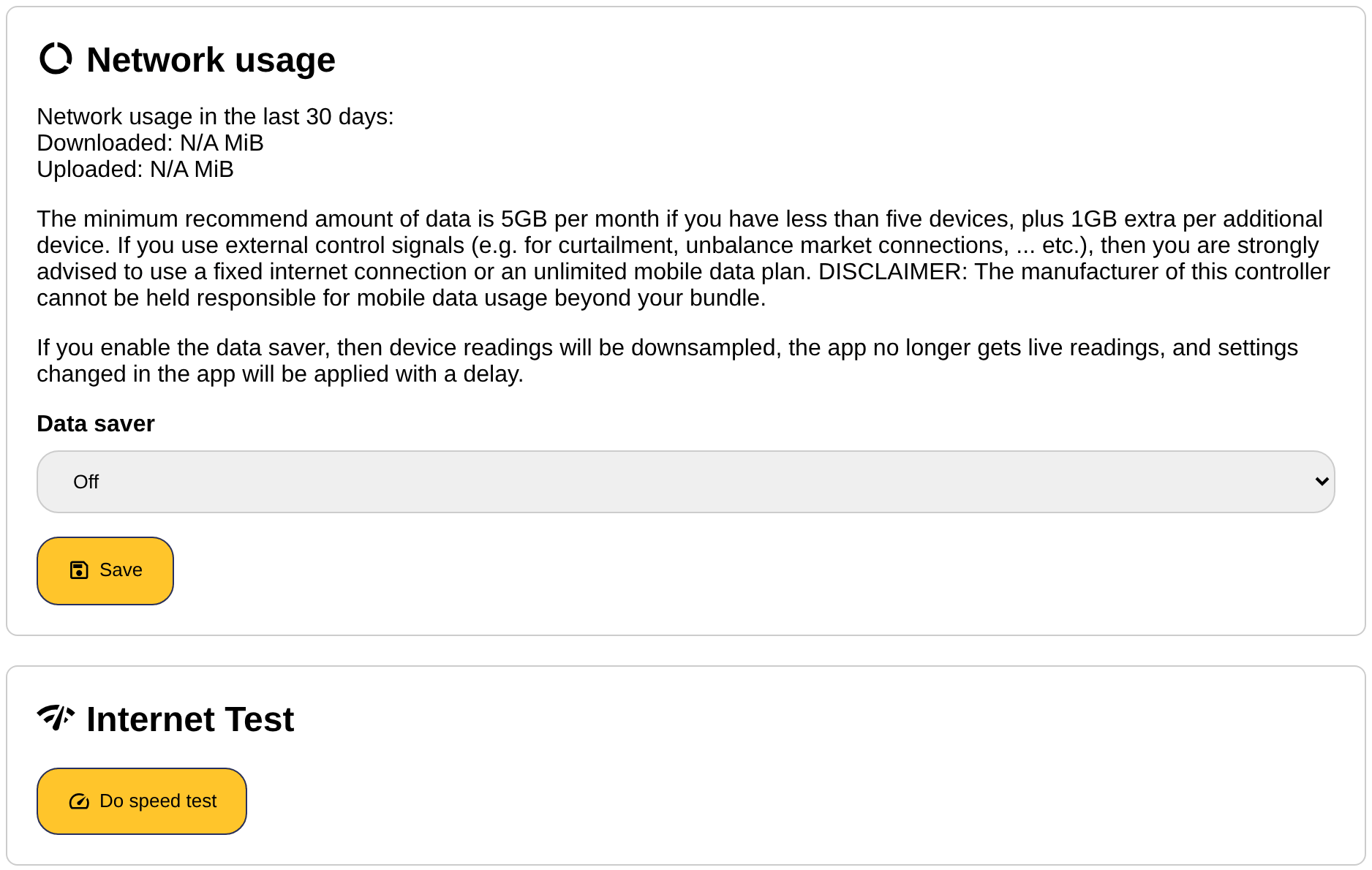
The section "Network usage" shows how many MiB were downloaded and uploaded in the last 30 days. This is useful for a SmartgridOne Controller on a mobile data plan: the minimum recommended amount of data is 5 GB per month for less than five devices, plus 1 GB per additional device, and external control signals need considerably more.
The data saver reduces the data usage: device readings are downsampled before they are sent to the server, the app no longer gets live readings, and settings changed in the app are applied with a delay. Choose "On" or "Off" and click "Save". See Data usage.
The section also contains an internet test ("Do speed test"), which measures the download speed and the lowest, average and highest latency of the internet connection of the SmartgridOne Controller. Use it when the SmartgridOne Controller is slow to react from the app or regularly shows as offline: see Troubleshooting: network.
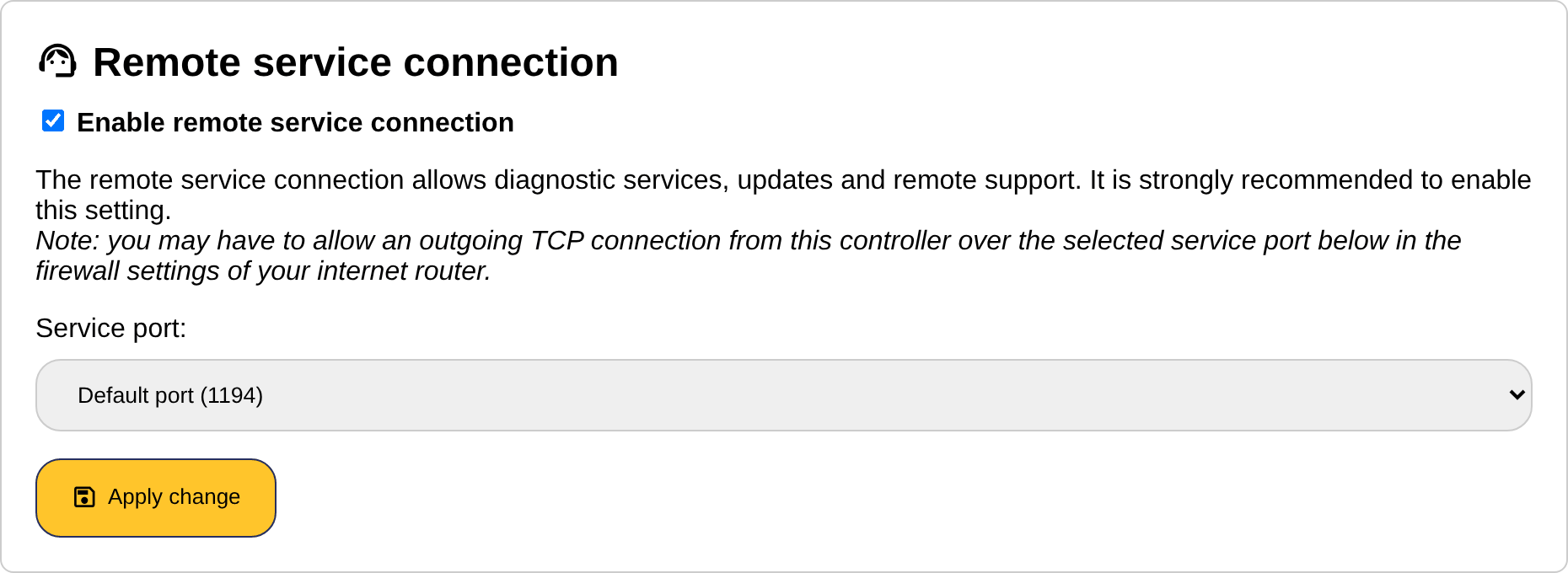
Remote service connection
The remote service connection allows diagnostic services, updates and remote support by your distributor. It is strongly recommended to keep it enabled.
| Setting | Explanation |
|---|---|
| Enable remote service connection | Enables or disables the connection. |
| Service port | The port over which the SmartgridOne Controller makes the outgoing connection: the default port (1194), the secondary port (1192) or a custom port in the range 35000-40000. Change it only when the firewall of the site blocks the default port. |
Click "Apply change" to save. You may have to allow an outgoing TCP connection from the SmartgridOne Controller over the selected port in the firewall of the internet router, see Network ports for outbound connections.