
Software updates
The software of the SmartgridOne Controller is updated over the internet. Updates bring new device integrations, new external signals, improvements of the control algorithms and security fixes.
Automatic updates
By default, automatic updates are enabled: the SmartgridOne Controller installs a new software version as soon as it is released for it. This is the recommended setting.
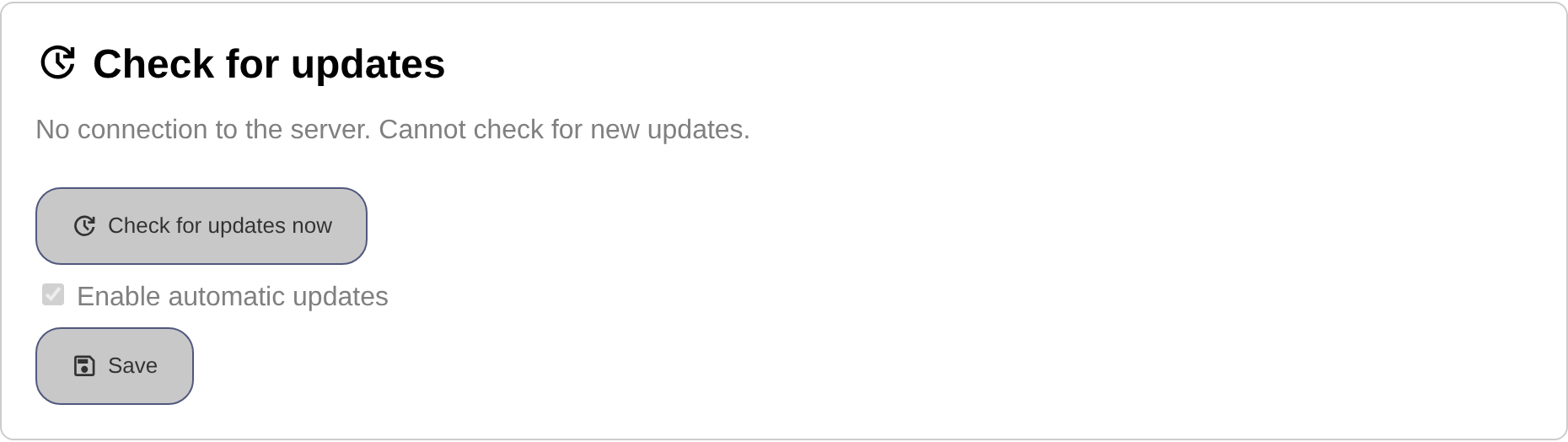
To change it, go to the 'Settings' tab of the commissioning interface, scroll to "Check for updates", tick or untick "Enable automatic updates" and click "Save".
Warning
If you disable the automatic updates, you may miss out on critical bug fixes and security updates. Damages that incur due to not updating the software may not be covered. Please check the contract with your distributor.
Checking for updates manually
- In the section "Check for updates", click "Check for updates now". The SmartgridOne Controller contacts the update server; if there is no connection to the server, the buttons are greyed out.
- The software update page shows whether the SmartgridOne Controller is up to date, or which version is available.
- Click "Update now" to install the available version. The SmartgridOne Controller shows a page "updating" while it installs the update, and it may reboot. Do not unplug the SmartgridOne Controller during the update; the page refreshes automatically when the update has finished.

Note
The devices are not read out and nothing is controlled while the update installs. The devices fall back to their own behaviour during those minutes, as they do at any restart of the SmartgridOne Controller.
Which version is installed?
The section "About" at the bottom of the settings page shows the installed version, the licenses and the changelog with the contents of every release. See also Software version.
Updates through the toolbox
Distributors can install specific versions on specific SmartgridOne Controllers through the toolbox. See Controllers toolbox.