SmartgridOne logo
SmartgridOne logo
Accessories
AppCertificates
Configuration from A to Z
1. Link to your account2. Accessing commissioning interface3. Grid limits4. Location / address5. Add grid energy meter6. Add other devices7. Grouping devices
8 Local Control Modes
9. PV panel configuration10. External control signals
11 Extra Information
Adding a deviceAdmin password and two-factor authenticationAdvanced settingsBackupBattery maintenance chargeConfiguring a fixed IP address in WindowsData usageDC-Linking Inverters and BatteriesDevice settingsDirect relay or switch controlEmail alarmsEnergy CostsEnergy storage and EVsFactory resetMaster/slave invertersNetwork settingsPhase imbalance correctionPredictionsPrioritiesReboot and automatic rebootRescale energy meter readingsReverse energy meter readingsSavings EstimatesSettings page overviewSoftware updatesTesting and manual overrideUser management
Control response timeController
Customer Specific
Devices
External Signals
InstallationLicenseNetworkQuick StartSafety, maintenance and legal noticesSpecificationsStatus LEDs
Toolbox
Troubleshooting
Video tutorialsWiring & connectivity guidelines
Configuration from A to Z11 Extra Information

Reboot and automatic reboot

Rebooting the SmartgridOne Controller

Go to the 'Settings' tab of the commissioning interface, scroll to "Reboot" and click "Reboot". The SmartgridOne Controller restarts; this takes a few minutes. The page shows the progress and returns to the login page when the SmartgridOne Controller is back.

Note
Note

During the reboot, the devices are not read out and nothing is controlled. The devices fall back to their own behaviour. A reboot never changes the settings; use the backup and the factory reset for that.

Automatic reboot period

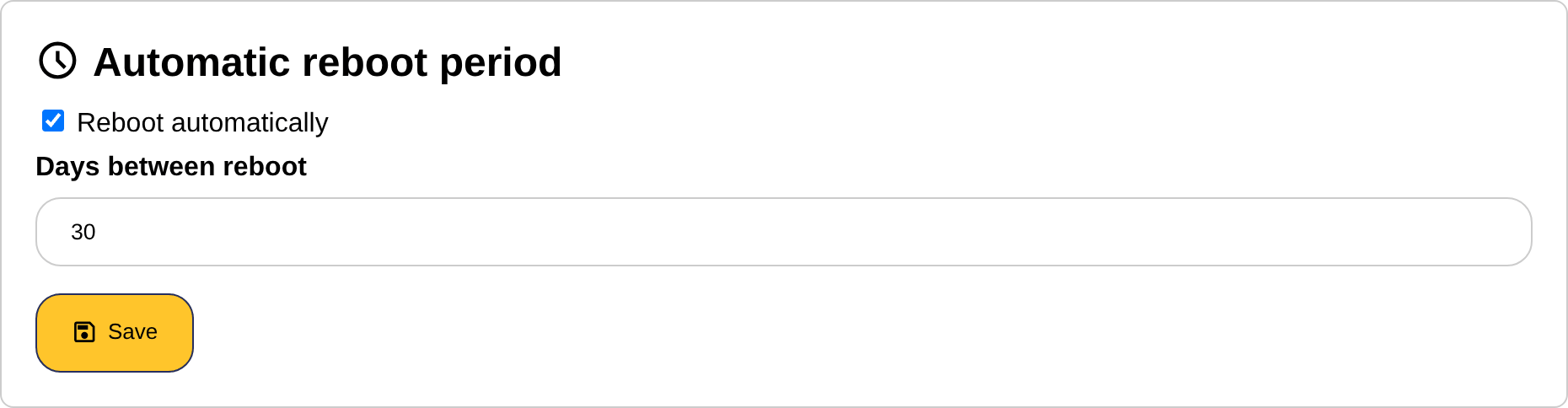
The SmartgridOne Controller can reboot itself periodically. This is not needed in a normal installation, but it can be a workaround for a device or a converter that stops answering after a number of days, or for a mobile network connection that hangs.

  1. In the section "Automatic reboot period", tick "Reboot automatically".
  2. Enter the number of days between two reboots.
  3. Click "Save".
The automatic reboot period section of the settings page
Tip
Tip

Rather solve the cause of the hanging device or connection: every reboot interrupts the control of the site for a few minutes.

Last updated September 13, 2026Edit this page

Priorities

Previous Page

Rescale energy meter readings

Next Page

On this page

Reboot and automatic rebootRebooting the SmartgridOne ControllerAutomatic reboot period